Introduction
Finance demands accountability. Engineering needs visibility. But somewhere between endless spreadsheets and cryptic billing reports, the answer to "How much is Marketing spending?" gets lost in thousands of line items.
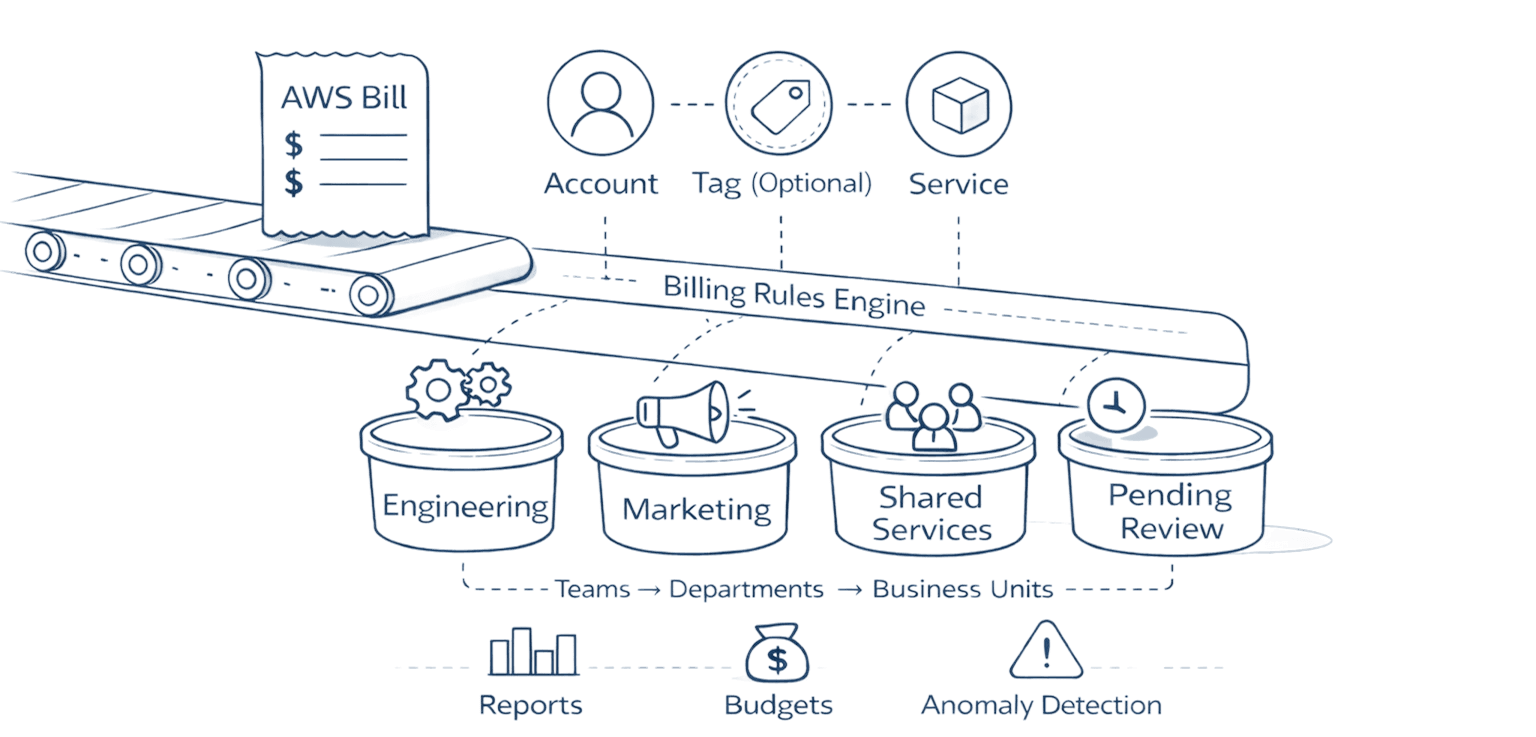
AWS Cost Categories solves this. It automatically organizes cloud spending into custom categories matching your business structure. No perfect tagging required. No manual spreadsheets. Just rule-based logic that runs every time AWS calculates your bill.
Key Highlights
AWS Cost Categories groups cloud costs automatically using rule-based logic at the billing level, reducing reliance on perfect tagging
Categories appear across Cost Explorer and AWS Savings Plans, Budgets, CUR, and Anomaly Detection, giving finance and engineering a single consistent view
You can create up to 50 categories and 500 rules each, including inherited value rules that scale dynamically with tag values
Split charge rules fairly allocate shared costs like logging, support, and networking using even, fixed, or proportional methods
Cost Categories provides multi-level hierarchy support, enabling rollups from teams → departments → business units
Designed for monthly reporting, categories refresh within 24 hours and apply retroactively from the start of the month
Works best when combined with a clean naming convention, minimal high-level structure, and quarterly governance reviews
What Are AWS Cost Categories
AWS Cost Categories is a free feature that groups costs using customizable rules. Traditional cost allocation requires tagging every resource. Miss a tag? Mystery spending. Cost Categories defines rules at the billing level: "All costs from accounts 101-105 belong to Engineering."
The rule-based engine processes costs when AWS computes your bill, with updates within 24 hours. Organizations create up to 50 cost categories, each with up to 500 rules. Track spending by teams, projects, environments, or business units. Categories appear across Cost Explorer, AWS Tags, AWS Budgets, Cost and Usage Reports, and Cost Anomaly Detection.
Key differences from traditional approaches:
Approach | Application Level | Requires Tagging | Updates | Hierarchy Support |
Resource Tags | Individual resources | Yes, every resource | Real-time | No |
Cost Categories | Billing line items | No | Within 24 hours | Yes, multilevel |
Manual Allocation | Spreadsheets | Depends | Monthly | Custom only |
How the Rule-Based Engine Actually Works
Cost Categories uses dimensions to create rules. Each dimension represents a way to slice billing data: Account, Service, Tag, Charge Type, Region, or even other Cost Categories.
Rules process in order, top to bottom. First match wins. This matters when costs could match multiple rules.
Example: Engineering has projects Alpha and Beta. Marketing has Gamma. Resources are tagged with project names.
Create a "Department" category:
Rule 1: If tag "Project" = "Alpha" OR "Beta" → Engineering
Rule 2: If tag "Project" = "Gamma" → Marketing
Rule 3: Default → Uncategorized
An EC2 instance tagged "Project:Alpha" matches Rule 1, gets categorized as Engineering, stops processing.
Regular rules use fixed criteria you manually specify. Inherited value rules dynamically extract values from dimensions. Tag resources with "Team:DevOps" and the inherited rule automatically creates "DevOps" as a category value.
Changes take up to 24 hours to appear but apply retroactively from the current month's start.
Cost Categories vs Cost Allocation Tags: When to Use Each
Cost allocation tags attach to individual AWS resources and AWS Cost Management. Perfect for resource-level tracking, but require tagging discipline. Miss one EC2 instance during weekend troubleshooting? Unattributable spending.
Cost Categories operate at higher abstraction. Define rules that group existing billing data. "All costs from prod-us-east account are Production." This categorizes everything in that account, tagged or not.
Use tags for resource-level precision, real-time tracking, and automated tooling integration.
Use Cost Categories for account-level grouping, executive reporting, untagged resource coverage, and hierarchical business rollups.
The power move? Use both. Tags provide bottom-up granularity. Categories provide top-down business alignment. Define category rules based on tag values, then roll up tagged and untagged costs into business-meaningful groups.
Setting Up Your First Cost Category
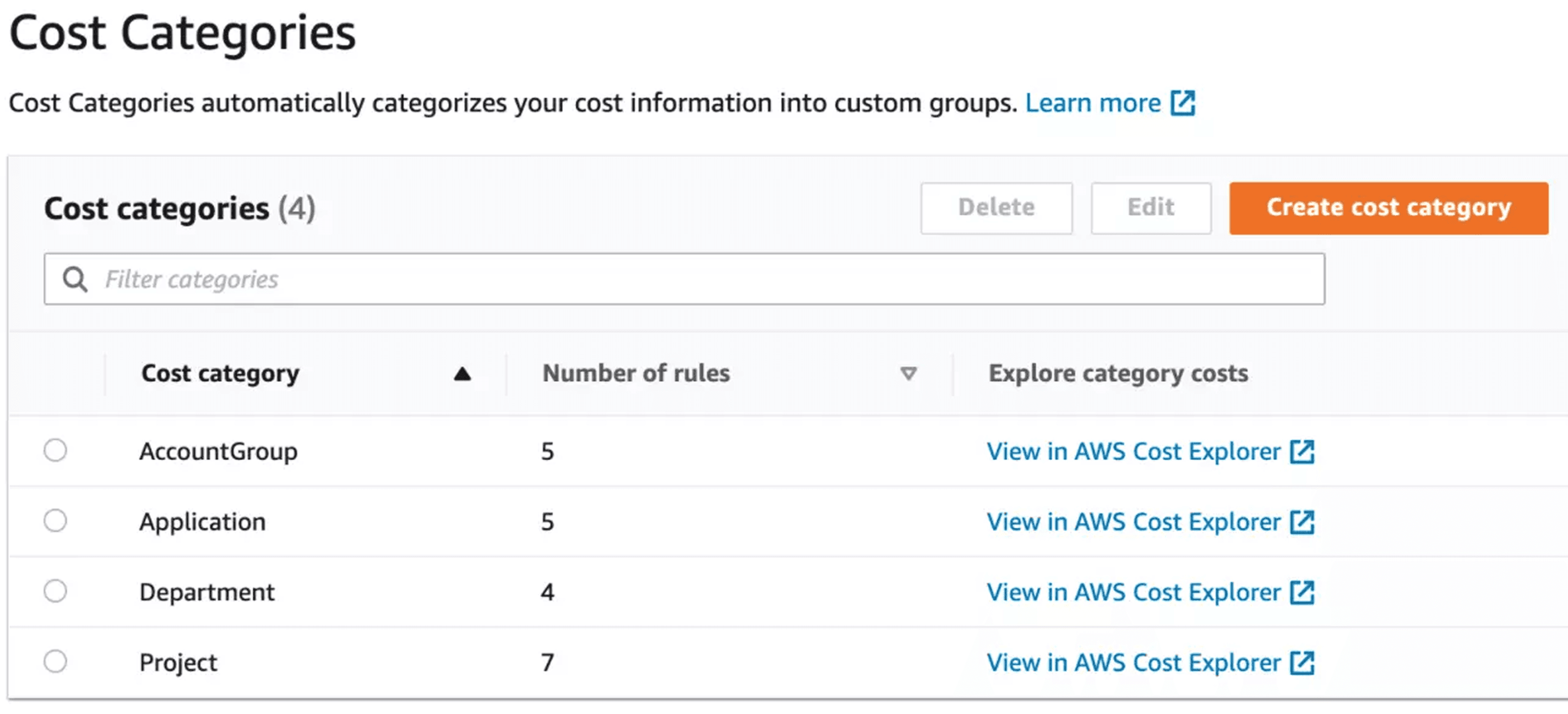
Open AWS Billing and Cost Management console. Navigate to Cost Categories. Click "Create cost category."
Naming: Match your organizational language. If your CFO says "Business Units," use that instead of "Teams." Names become filter dimensions across all cost tools.
Creating rules with Rule Builder:
For a "Department" category separating Engineering and Marketing:
Click "Add rule"
Choose "Manually define how to group costs"
Select dimension: "Account"
Choose operator: "Is"
Select engineering accounts
Set category value: "Engineering"
Create rule, repeat for Marketing
Rule order matters. More specific rules first, broader rules later. Add a default value like "Shared Services" instead of "Uncategorized."
For inherited value rules:
If you've tagged resources with "Owner:TeamAlpha," "Owner:TeamBeta":
Choose "Automatically group costs by account or tag"
Select dimension: "Tag"
Specify tag key: "Owner"
AWS creates category values matching your tag values automatically. New teams get added when they start tagging.
Categories populate within 24 hours and apply from the current month's beginning.
Advanced Feature: Split Charge Rules
Shared costs create allocation headaches. Data transfer fees. Enterprise support. Centralized logging. Who pays?
Split charge rules distribute costs fairly. Example: DevOps runs centralized logging costing $5,000 monthly. Engineering generates 70% of logs, Marketing 30%.
Source: DevOps
Targets: Engineering, Marketing
Method: Proportional (70/30 split)
AWS allocates $3,500 to Engineering, $1,500 to Marketing.
Three methods: Even split (divide equally), Fixed percentage (define exact splits), or Proportional (allocate based on each target's total costs).
You can define up to 10 split charge rules per category.
Important: Split charge allocations appear only in the Cost Categories detail page. They do not surface as separate line items in Cost Explorer, AWS Budgets, or the main Cost and Usage Reports. The Cost Categories detail page becomes your single source of truth for the allocated view of shared costs.
Limitations You Need to Know
Cost Categories isn't perfect. Understanding constraints helps set realistic expectations.
24-hour refresh delay. Updates appear within 24 hours, not real-time. You can't catch a spike as it happens - you'll see it tomorrow.
Maximum 50 categories per account. Complex organizations hit this limit. Choose your categorization hierarchy strategically.
500 rules per category. Use inherited value rules to scale beyond manual rule creation when managing hundreds of accounts.
Depends on clean input data. If account names are "Account-12345" instead of "Prod-Engineering-US-East," writing rules becomes painful. Standardize naming conventions first.
Split charges only visible in Cost Categories detail page. Allocated costs from split rules appear exclusively in the Cost Categories detail view, not in Cost Explorer, AWS Budgets, or Cost and Usage Reports. Extract data from the detail page for comprehensive reporting.
Categories only track AWS costs. Multi-cloud organizations need separate processes for each provider.
The 24-hour refresh creates the biggest operational challenge. Cost Categories serves monthly financial reporting, not minute-by-minute optimization decisions.
Best Practices from Real Implementations
Start simple. Create 3-5 high-level categories: Environment (Production, Staging, Development), Department (Engineering, Marketing, Operations), and Cost Center (mapping to your accounting system). Master the mechanics before adding complexity.
Naming conventions matter. Use consistent prefixes like "FinOps-Dept-Engineering" to distinguish category types in reports. Six months later, "Engineering" becomes ambiguous when you have cost center categories too. Prefixes eliminate confusion.
Review quarterly. Organizations change. Teams reorganize. Acquisitions add accounts. Schedule regular audits to catch uncategorized costs and update rules. Track the "No Cost Category" label in Cost Explorer - that's your cleanup list.
Combine strategically with tags. Use categories for high-level grouping (departments, business units), tags for granular tracking (specific applications, owners). Don't replicate your entire tagging taxonomy in categories.
Set meaningful defaults. "Pre-Production" or "Pending-Review" beats "Uncategorized" because it signals these costs await categorization, not that they're errors. Use defaults to create actionable follow-up lists.
Document your rules. Maintain a simple spreadsheet mapping accounts to category values with business justification. When finance asks why account X belongs to category Y six months later, you'll have the answer.
Test before saving. The console shows cost preview before you commit. If Engineering shows $0 or Marketing shows 90% of total spend, you've misconfigured something. The preview catches mistakes before they hit reports.
For hierarchies, build bottom-up: Teams first, then Departments rolling up Teams, then Business Units rolling up Departments. This matches how finance consumes the data.
FAQ
Q: Do I need perfect tagging to use Cost Categories?
A: No. That's the primary advantage. Categories work with account-based rules, service-based rules, or tag-based rules. You can categorize untagged resources by grouping accounts.
Q: Can I use Cost Categories for chargeback?
A: Yes. Categories appear in Cost and Usage Reports with billing line items. Export the CUR and you have categorized costs ready for your chargeback process.
Q: What happens if costs match multiple rules?
A: The first matching rule wins. Rules process in order from top to bottom. Arrange rules from most specific to most general, with default value last.
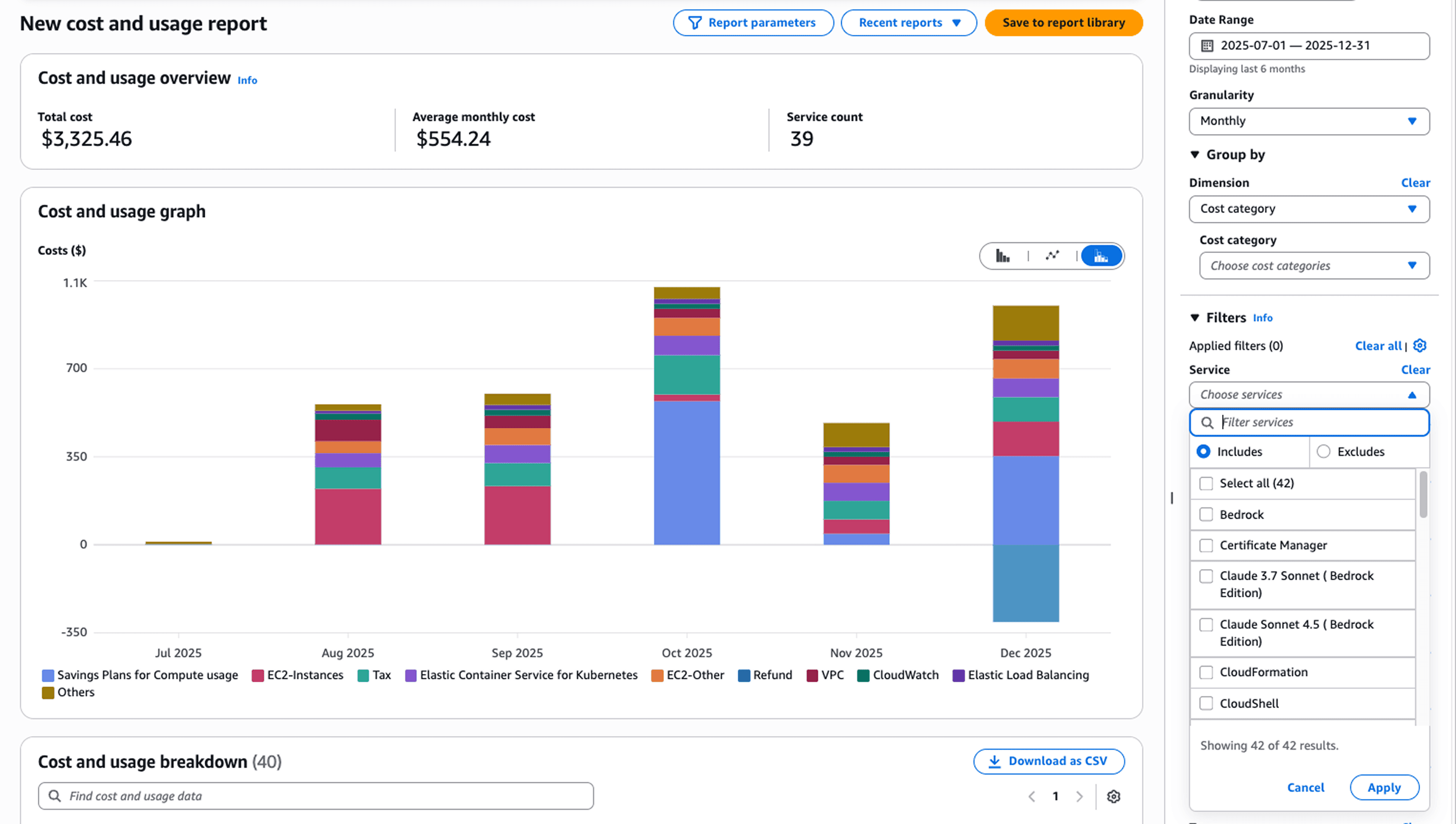
Q: Can I see Cost Categories in Cost Explorer?
A: Yes. Categories appear as filter dimensions. You can filter by category value or group by category to visualize spending across your organizational structure.
Q: How do I handle costs that span categories?
A: Use split charge rules. Define the source (shared cost category value), targets (who should share the cost), and allocation method (even, fixed percentage, or proportional).
Take Control of Your AWS Spending Today
AWS Cost Categories transforms billing chaos into organized financial data. You get accountability without perfect tagging, business-aligned reporting without manual allocation, and consistent categorization across every AWS cost tool.
Start with one category tracking your primary cost division. Watch automatic categorization eliminate monthly allocation sessions. Then layer in hierarchies and split charge rules.
Ready to optimize beyond basic categorization? Schedule a free AWS cost optimization assessment with Opsolute. We'll identify hidden savings, implement automated cost strategies, and build custom dashboards connecting AWS spending to business outcomes.
Your CFO's next question about cloud costs deserves a clear answer. AWS Cost Categories makes that possible.